
Watch a chat become files on your PC.
This page shows one complete download, recorded on a Windows PC — from the website to two files in a folder on the drive.
One account, start to finish
Recorded on the Free Tier, beginning at the website and ending with the conversation open. It runs at 2× with the long download stretch at 3× — both speeds are labelled on screen. The recording has no audio track, and the step list below follows this timeline.
Real screen recording, trimmed for length. Account details are masked in the app.
Three things are altered, each labelled on screen: the dead air at each end is cut, the walkthrough runs at 2× (a "2x speed" badge sits top-left), and the long download runs at 3× (banner, bottom). Every step is the real app — nothing is re-staged.
What happens in the video
0:03Get the app
The demo starts on the website. TotalRecalls is a ZIP you run from its own folder — there's no installer and no TotalRecalls account.
0:27Download the Free Tier
The Free Tier ZIP covers ChatGPT, Claude, and Perplexity, with up to 5 conversations each. No card, no signup.
0:40Unzip it, then run it
Windows extracts the ZIP first, then you double-click TotalRecalls.exe. It runs from wherever you put the folder.
0:45Windows may warn you
The first launch of a new, unsigned app shows the SmartScreen card. More info → Run anyway. The app is safe to run; the prompt is normal.
0:52Choose your provider
Step 1 in the app. The provider list shows what your tier includes — ChatGPT is part of the Free Tier.
0:54Sign in
Step 2. You sign in inside the app, on your own PC. The app opens the sign-in window itself, or you can paste a session cookie instead.
1:14Your history loads
Once connected, the app enumerates your conversations and shows the count — 106 here — before it downloads anything.
1:24Download
The app walks the history and writes each conversation to disk. The long stretch is the fastest part of the video — it runs at 3×.
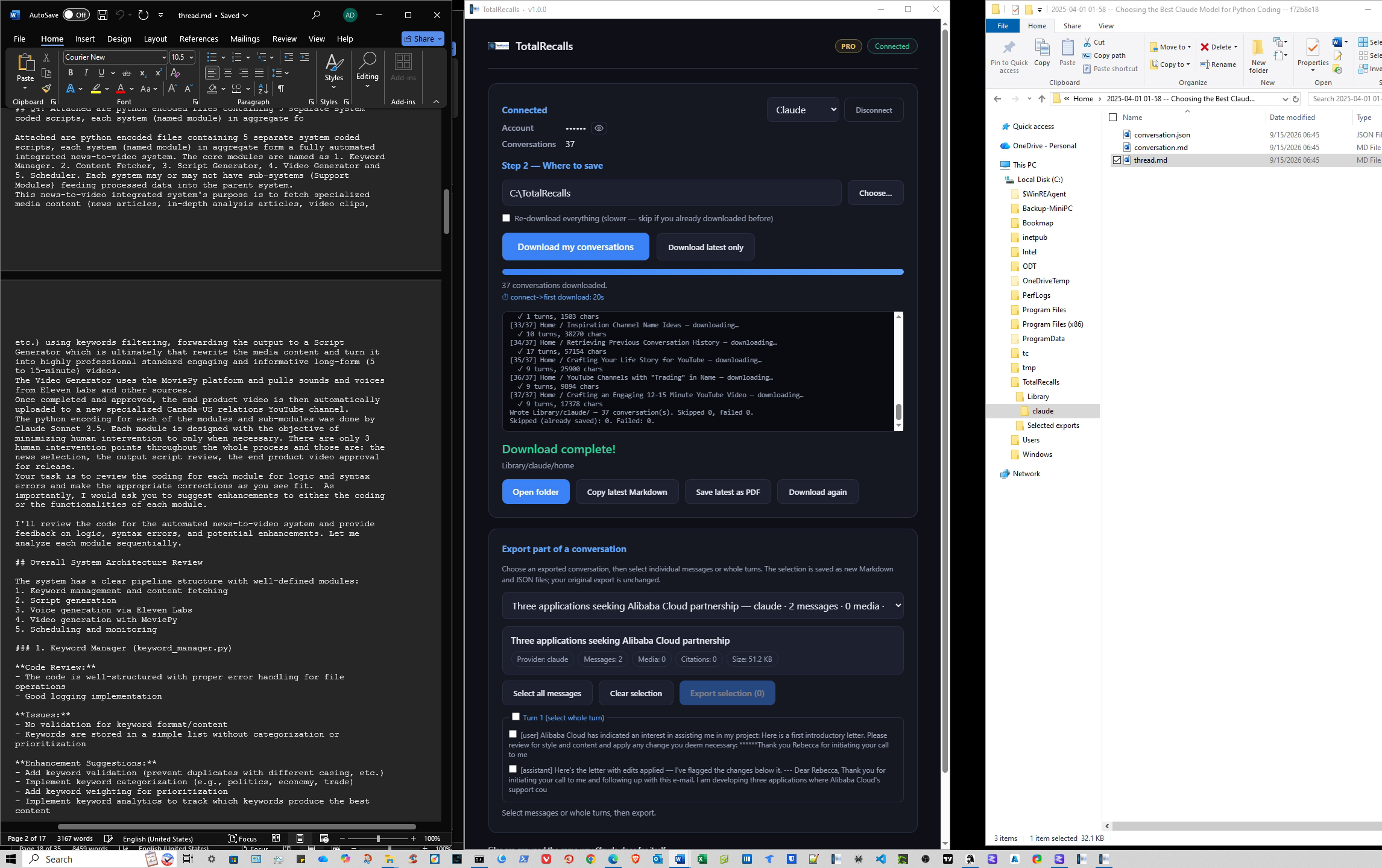
4:26Complete — open the folder
When it finishes, the app shows exactly where the files went and offers to open the folder for you.
4:52The files
One Markdown file and one JSON file per conversation, in a subfolder for that provider. The video ends with the chat open in Word.
What's on your drive afterward
The folder
One Library, with a subfolder for each provider.
The Markdown file
The full conversation in readable text, with headings and code blocks intact.
The JSON file
The same chat as structured data, ready for search or other tools.
These files open without TotalRecalls. Copy them, back them up, or search them like any other document on your PC.
C:\TotalRecalls\Library\chatgpt\2026-09-14-pricing-research.mdMDJSON●Saved locallyRun the same download on your own chats
The Free Tier includes ChatGPT, Claude, and Perplexity, with up to 5 conversations each. You don't need a card or an account.
Windows 10 and 11. Windows may show a SmartScreen prompt the first time you open the app. What it means →
Want every provider and no download cap?
Compare Free and Pro →Show transcript
The recording has no audio, so there's nothing to transcribe — this is the sequence of the walkthrough, with the timecode where each beat happens in the video.
- 0:03 — Get the app. The demo starts on the website. TotalRecalls is a ZIP you run from its own folder — there's no installer and no TotalRecalls account.
- 0:27 — Download the Free Tier. The Free Tier ZIP covers ChatGPT, Claude, and Perplexity, with up to 5 conversations each. No card, no signup.
- 0:40 — Unzip it, then run it. Windows extracts the ZIP first, then you double-click TotalRecalls.exe. It runs from wherever you put the folder.
- 0:45 — Windows may warn you. The first launch of a new, unsigned app shows the SmartScreen card. More info → Run anyway. The app is safe to run; the prompt is normal.
- 0:52 — Choose your provider. Step 1 in the app. The provider list shows what your tier includes — ChatGPT is part of the Free Tier.
- 0:54 — Sign in. Step 2. You sign in inside the app, on your own PC. The app opens the sign-in window itself, or you can paste a session cookie instead.
- 1:14 — Your history loads. Once connected, the app enumerates your conversations and shows the count — 106 here — before it downloads anything.
- 1:24 — Download. The app walks the history and writes each conversation to disk. The long stretch is the fastest part of the video — it runs at 3×.
- 4:26 — Complete — open the folder. When it finishes, the app shows exactly where the files went and offers to open the folder for you.
- 4:52 — The files. One Markdown file and one JSON file per conversation, in a subfolder for that provider. The video ends with the chat open in Word.